




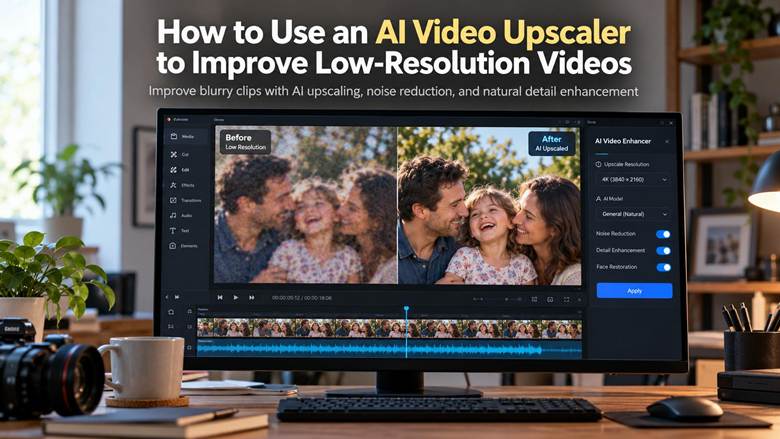
An old family recording, a downloaded clip, or a phone video can look blurry when played on a large screen. A video upscaler may be used to make it look better by adding higher resolution and estimated details, though exporting a video in 1080p or 4K is not guaranteed to make it sharper. The selection of the appropriate AI video upscaler is affected by the original video and its issues, like blur, noise, or pixelation. This tutorial describes the process of using an online video upscaler, when AI enhancement is applicable, and upscaling a video with the ability to detect natural details and undesirable changes.
What Counts as a Low-Resolution Video?
A low-resolution video has comparatively few pixels per frame, and thus when it is scaled up, it might appear blurred or pixelated. But only one aspect of video quality is resolution. Poor focus, compression, and blur artifacts are also capable of showing up in footage, despite the fact that the resolution of the footage is high. Determining the key issue assists you in selecting the appropriate improvement technique rather than adding more resolution without enhancing the image.
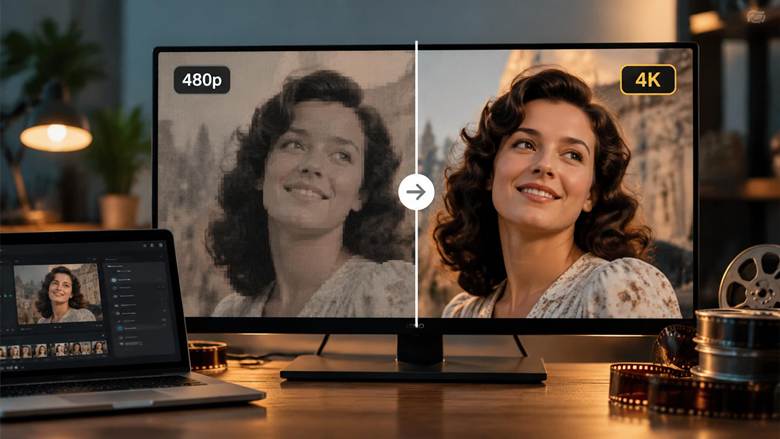 Comparison of blurry 480p and enhanced 4K video quality.
Videos with Low Pixel Dimensions
Some of the commonly used low-resolution formats are 240p, 360p, and 480p. Certain 720p videos might not be detailed enough to use with large screens, as well. The difference between a 480p video and a phone will not be very noticeable, but with a TV it will be. By enlarging its pixel size to 1080p or 4K, the video cannot recover all the details that were lost in the original recording. The final quality is also dependent on compression, data rate and the screen on which it is viewed.
Blurry Videos with Missing Fine Details
Even a video with big pixel dimensions can appear blurred. An example here is that the face of a person can seem soft due to a lack of focus by the camera. Motion blur may be brought about by high speed, and improper lighting may hide details in the darker areas. Sharpness can also be cut off due to repeated editing and exporting.
Compressed Videos with Visible Artifacts
The visual details of videos that are sent via messaging apps or social media can be lost during compression. You can observe square blocks, jagged edges, bizarre color combinations, and flickering around moving objects. This is referred to as compression artifacts. Even with a high resolution of a video, these problems may be displayed. There are some enhancement tools, which may minimize some artifacts, but their output is dependent on the level of the artifact and the quality of the original file.
How to Check Your Video's Resolution
Always look at the properties of the video and watch it before deciding on an enhancement tool. This can be done in the following easy steps:
Check the resolution: Open the properties or media information of the file. Look for dimensions such as 640 × 360, 854 × 480, or 1920 × 1080.
Watch in varying sizes: Watch the video in the regular window, and watch in full-screen. Indicate whether or not the image loses clarity as it is increased in size.
Scan critical information: Scan faces, hair, text, object edges, and background textures. Look for softness, visible blocks, distorted colours, and flickering.
Keep in mind that these issues may co-exist. The video may also have low resolution and a lot of compression. Determining the primary problem will help you decide whether to increase the resolution, reduce compression artifacts, or improve sharpness before choosing an enhancement tool.
How to Upscale a Low-Resolution Video with HitPaw VikPea
HitPaw VikPea is a video upscaler app that can be installed on desktops and is based on AI models to enhance videos, decrease noise, and raise the resolution. It may be handy when using old family videos, grainy cell phone videos, and crunchy videos that appear fuzzy on big screens. Make sure that you know the original video resolution and the primary quality issue with it beforehand. This will assist you in choosing an appropriate AI model for your footage.
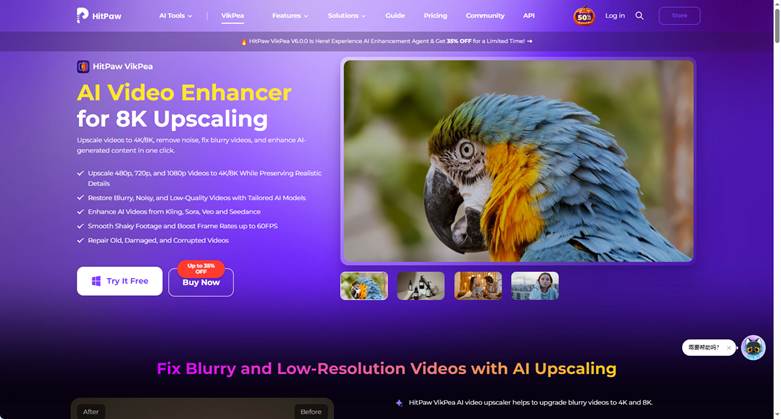 HitPaw VikPea interface for AI video upscaling and enhancement.
Key Features
- AI upscaling: Increase video resolution to options such as 1080p or 4K, depending on the available settings.
- Noise minimization: Smooth out visible grain and enhance the look of noisy video.
- Specialized AI models: Select an appropriate model for a variety of footage, such as general videos and animation.
- Preview, export: See the improved result and save the final video.
Steps to Upscale a Video with HitPaw VikPea
Step 1: Install and Open the Software
Go to the VikPea official site of HitPaw and download the software. Install and start the program on your computer. Open the video enhancement option to start.
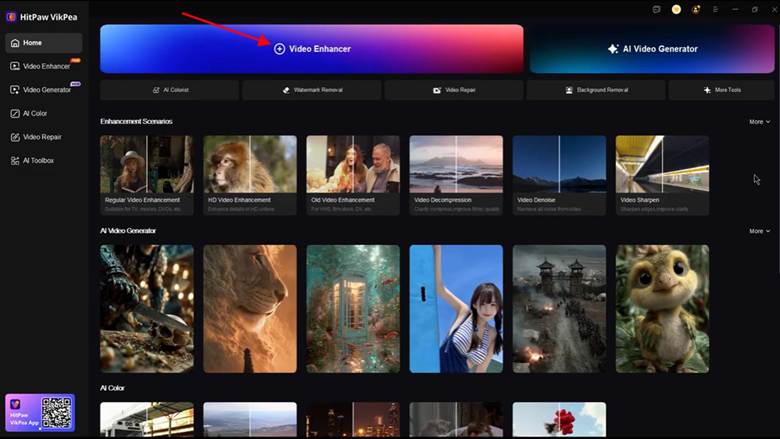 Open HitPaw VikPea video enhancement software.
Step 2: Import Your Video
Click on Import or drag your video file to the workspace. Choose the original clip that you would like to enhance. Select a video where the issue that you wish to address is easily visible, i.e., pixelation or blur.
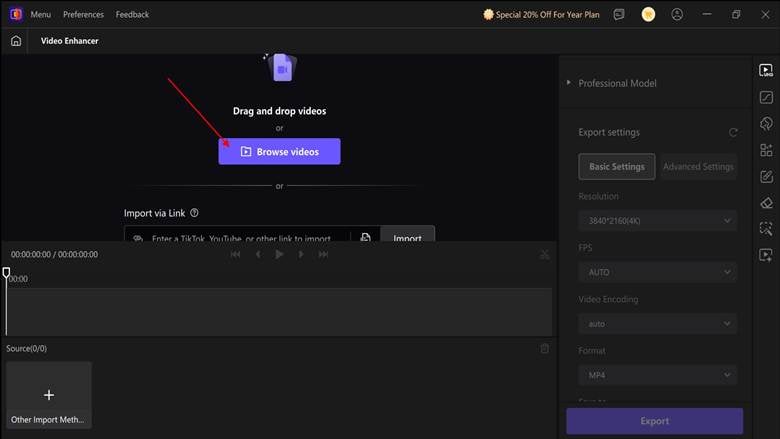 Import a low-resolution video into HitPaw VikPea.
Step 3: Choose an AI Model and Resolution
Select an AI model that suits your footage. Then select an output resolution, which is either 1080p or 4K, where possible. Test the improved clip and verify that faces, edges and textures are more noticeable and do not seem to be artificial.
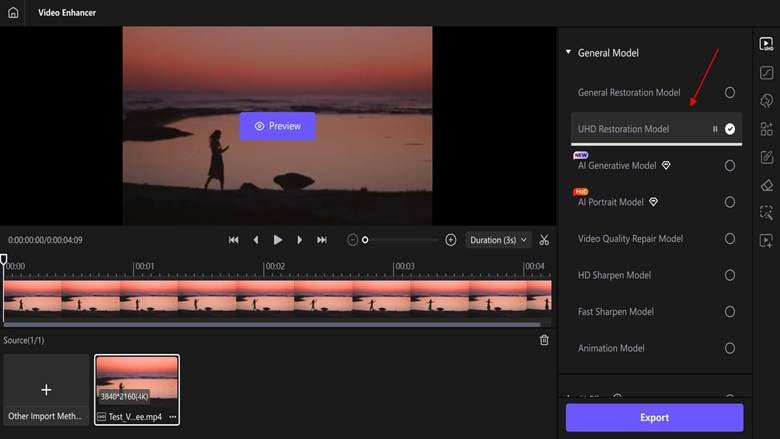 Select an AI enhancement model and output resolution in HitPaw VikPea.
Step 4: Preview and Export
Compare the improved video with the original video. Observe the details, moving objects and any visual noise left. When the result appears natural and suits your needs, you can save the enhanced video by clicking Export. Select an appropriate location for the file, verify the video that has been exported, and then share it or edit it further.
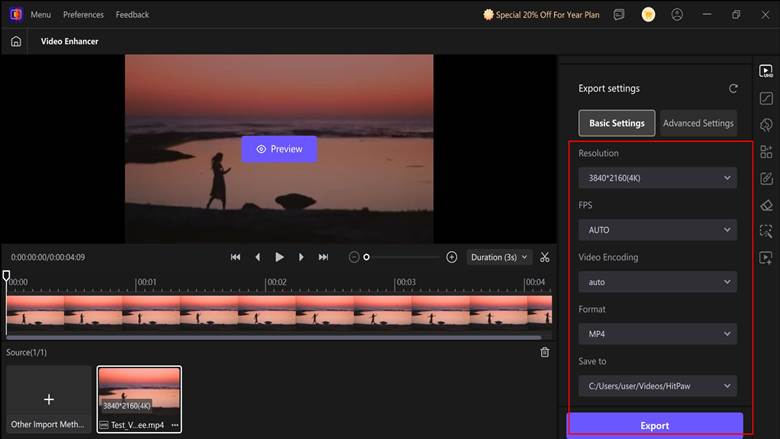 Preview and export an enhanced video using HitPaw VikPea.
AI Video Upscaling: Benefits and Limitations
During low-quality video upscaling, an AI can enhance the quality of the video, raising the resolution and clarity of the visible details. The outcome, however, varies with the original video, the nature of the damage and the method of enhancement. Certain software may be used to sharpen images, to reduce noise and enhance clarity; however, they are unable to reinstate all of the lost details.
Improving Resolution and Visible Details
AI upscaling increases the number of pixels per frame. It is also able to approximate what is missing to form edges, textures, and faces that are more explicit. This comes in handy with old recordings and low-resolution social media clips. The details are additions, however, and not a reconstruction of the original scene.
Reducing Blur and Compression Artifacts
Certain AI applications are capable of decreasing mild blur, image artifacts, and compression artifacts. These enhancements can assist footage to appear cleaner following multiple sharing or exporting. Nevertheless, harsh motion blur, lack of focus, and compression may restrain the outcomes. Select an instrument that has appropriate enhancement features, and look for unnatural edges or facial changes.
Choosing Between 1080p and 4K Output
Depending on the original footage and the location where you are going to view it, select your output resolution.
1080p: An option that is viable for normal viewing, social media and regular HD displays.
4K: It can be used with large 4K screens or projects that need to be shown at higher resolutions.
An example is a 480p family video which can be improved by upscaling to 1080p. Converting it into 4K will only make it bigger without any extra detail that will be convincing. Start with a short clip, compare the two versions and select the one that appears most natural. Increasing resolution does not always improve visual quality.
Common Problems When Upscaling Videos
Upscaling can not necessarily lead to the desired outcomes. Initial recording, level of compression, and the refinements may affect the quality of the final recording. Being aware of common problems will help you choose more suitable settings and avoid wasting time on repeated exports.
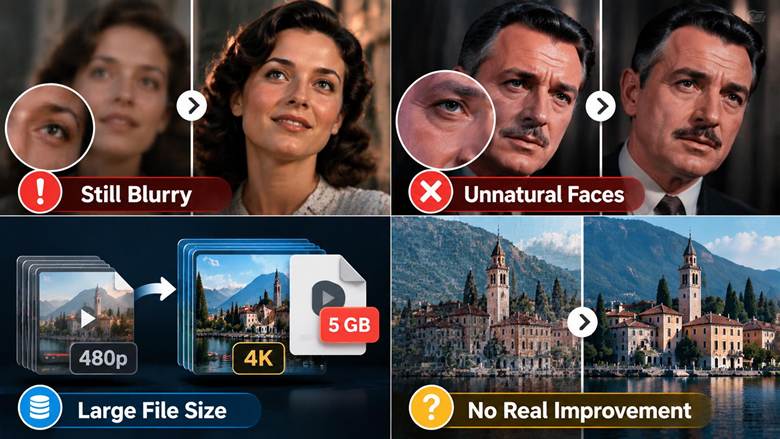 Common video upscaling problems
Upscaled Videos Still Look Blurry
Resolution is not necessarily a way to eliminate blur. The original video can be out of focus due to camera movement or the quality of the recording. Test an AI model that is aimed at sharpening or deblurring. Watch a snippet of the video prior to working on the full video. In the event that some crucial details are omitted, a bit of a haze might be left.
Faces and Textures Look Unnatural
Some missing details are estimated using AI tools, and it may result in the appearance of faces, hair, and skin being rather unnatural. Fine textures can be over-sharp, and flicker in moving objects can be seen. Try another AI model or lower the enhancement strength, if this option is available. Compare moving scenes and faces with the original footage.
The Exported Video Has a Large File Size
Try another AI model or lower the enhancement strength, if this option is available. To control file size, select an appropriate output format, e.g., MP4 and set the bitrate or compression parameters. A big 4K file may not be necessary in the case of social media sharing. Trade-off between image quality, storage space and uploading needs.
The Upscaled Video Looks No Better Than the Original
The improvement is so small at times that it is not noticeable. This can occur when the original is already readable or has some serious damage that can not be fixed by AI. The artifacts of compression might persist even after enhancement. Compare the two versions with similar screen size. Another AI model or a reduced-resolution output should be tried in case it has a more natural output. The idea is to enhance visual quality, and not merely to boost the number of pixels.
FAQs About AI Video Upscaling
1. How Does an AI Video Upscaler Improve Video Quality?
An AI video upscaler uses artificial intelligence to increase resolution and estimate missing visual details. It is able to enhance edges, sharpness and textures. Outcomes will be based on the initial recording.
2. Can I Upscale a Low-Resolution Video to 4K?
Yes, many AI tools support 4K upscaling. However, a higher output resolution does not guarantee more realistic detail. Always preview the product and then export.
3. What Is the Best AI Video Upscaler for Low-Resolution Videos?
HitPaw VikPea could be one choice for desktop video enhancement. It provides AI models for various kinds of footage. The optimal decision would be based on your video quality, budget and requirements.
4. Can I Upscale a Video for Free Without a Watermark?
There are some tools that have free upscaling or a trial. Nevertheless, free plans can be restrictive in terms of resolution, processing time or exports. Always verify the existing terms of the tool prior to its use.
5. Does AI Video Upscaling Fix Blurry Videos?
Mild blur can be sharpened by AI upscaling, and details can be enhanced. Extreme motion blur or lack of focus can remain. The outcomes are different depending on the initial video and AI model.
Conclusion
To improve a low-resolution video, first identify the main quality problem, select the appropriate enhancement method, and choose a realistic output resolution, such as 1080p or 4K. As AI is not able to repair all damaged videos, it would be better to test a short clip to compare the results in terms of sharpness, natural details and other undesirable changes in the picture and then process the whole file. HitPaw VikPea helps users improve video quality through AI tools that upscale footage, reduce noise, and improve its overall appearance.

 Ghana introduces 21-day monitoring for travellers from Ebola-affected countries
 Let’s stop bashing NACOC anytime there is drug bust – Hopeson Adorye
 Sam George threatens to shut down political, religious affiliated media houses i...
 'We are demanding our GH¢16m back' – Abu Jinapor at 'Yɛ Gye Yɛ Sika' demo
 'Don't defend accountability only in opposition' – Osahen Afenyo-Markin tells Af...
 Mother of slain Ghanaian teenager heads to US for son's funeral
 'People want to directly elect their MMDCEs' — CDD-Ghana rejects govt proposal
 Parliament’s Human Rights Committee calls for reintroduction of safe disciplinar...
 Chief Justice orders Supreme Court to sit despite ongoing JUSAG strike
 Free SHS food suppliers threaten five-day protest over unpaid debts


